Overview
Since its mandate for businesses with turnover above 5 crore, e-invoicing has become a core GST compliance activity that no supplier can afford to ignore. The e-invoice system requires every tax invoice to be registered on the GSTN Invoice Registration Portal (IRP) to obtain a 64-character Invoice Reference Number (IRN) and a digitally signed QR code. Alongside, inter-state and even many intra-state movements of goods require a valid e-way bill with Part A and Part B details. TallyPrime offers end-to-end integration with both the e-invoice and e-way bill systems, so you never have to leave your accounting software or manually re-enter data on any portal.
Unlike disconnected web portals where you must upload spreadsheets or re-key invoices one at a time, TallyPrime lets you generate the IRN and e-way bill directly while saving a sales voucher. The system validates all data fields against GSTN rules before sending, catches errors early, and once the IRN is generated it automatically prints the signed QR code and IRN number on every copy of your invoice. For transport movements, you can generate Part A from the invoice, add vehicle details for Part B later, and even extend or cancel e-way bills if delivery schedules change.
This guide covers the full e-invoice and e-way bill lifecycle inside TallyPrime — from one-time GSTIN registration and F11 features enablement, through bulk IRN generation, printing signed QR invoices, handling rejections from the IRP, cancelling IRNs within the 24-hour window, and extending or cancelling e-way bills when delivery is delayed or routes change.
Key Benefits
1-Click IRN Generation
Generate IRN and e-way bill simultaneously while saving your sales voucher.
Bulk Actions Supported
Send 100s of pending invoices to IRP at once from the e-invoice report.
Auto QR & Signing
Signed QR code and IRN automatically appear on your printed invoice PDF.
Cancel & Extend
Cancel IRN within 24 hrs or extend e-way bill validity when delivery delays.
Step-by-Step Guide
Register GSTIN on E-Invoice & E-Way Bill Portal
Before using the feature in TallyPrime, one authorised signatory from your business must log in to the e-invoice portal (einvoice1.gst.gov.in) and e-way bill portal (ewaybillgst.gov.in) using GSTIN credentials. Go to API Registration → Create User and generate a username and password specifically for API-based integration. Keep these credentials ready as you will enter them in TallyPrime.
Enable E-Invoicing and E-Way Bill from F11 Features

Open TallyPrime and load your company. Press F11 (Features) → set “Enable Goods and Services Tax (GST)” to Yes. Under GST details, enable both “Is e-Invoicing applicable?” and “Is e-Way Bill applicable?” options. Enter the applicable turnover threshold date, your registered e-invoice username and password, and save the configuration.
Generate IRN on Voucher Save (Online Mode)
Create a sales voucher (Accounting Invoice or Item Invoice) as usual. Fill in party details, GSTIN, HSN/SAC codes, taxable values and tax rates correctly. Before accepting, press Ctrl+I (or click e-Invoice button) and select “Generate IRN”. Tally validates fields, sends to IRP, and on success the 64-char IRN, Acknowledgement No and Signed QR are stored against the voucher.
Generate E-Way Bill Part A & Part B with Vehicle Details

After IRN is generated, the same voucher can also generate the e-way bill. Press Ctrl+W (e-Way Bill) → “Generate E-Way Bill”. The Part A fields (invoice, value, GSTINs, consignee address) auto-fill. For Part B enter distance (in km), transporter name or ID, vehicle type and vehicle number. Submit and the system returns a 12-digit EWB No and validity date.
Print Invoice with Signed QR Code & IRN
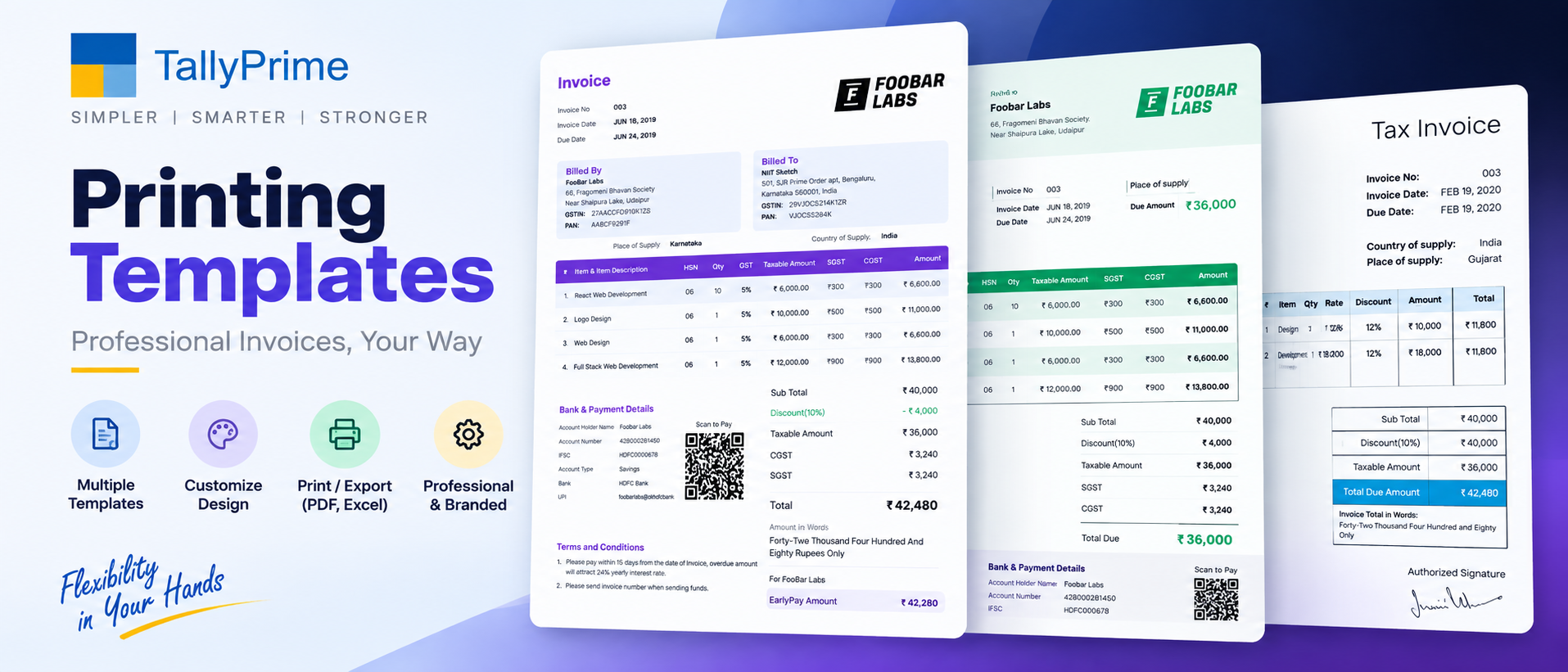
Open any voucher that has an IRN and press Ctrl+P (Print). Under the print configuration, ensure “Print QR Code” and “Print IRN” options are enabled. Tally prints a tax invoice copy that includes the signed JSON QR (scannable by GST officers using the QR verify app), IRN number, Acknowledgement date, EWB No and transporter details alongside your company logo and signature.
Cancel IRN or Extend / Cancel E-Way Bill When Needed
If an invoice was wrongly generated, open the voucher → Ctrl+I → Cancel IRN. Choose a cancellation reason (duplicate, data entry error, order cancelled etc.) and submit within 24 hours. For e-way bills press Ctrl+W → Extend Validity or Cancel E-Way Bill, provide reason and remarks, and the status updates directly on the portal.
Pro Tips
- Always send to IRP in “Generate on save” mode for live businesses. This lets you catch validation errors instantly instead of accumulating 100+ failed invoices at day end. If internet is down Tally automatically queues them offline and retries when connection is restored.
- Use the E-Invoice Report (Alt+G → E-Invoice Register) to spot pending items. This report groups vouchers into To Generate, Generated, Failed, Cancelled. Click any Failed row, press Alt+V to see the exact GSTN error message (e.g., invalid HSN, mismatched PIN code) and correct it in place.
- For bulk generation of older backdated invoices, use the Offline Excel Utility first. If you have thousands of pending invoices from before e-invoice was enabled, export them from TallyPrime to Excel, upload via the IRP offline tool to get IRNs, then import IRNs back into Tally using “Update from Excel” — much faster than API bulk send.
- IRN cancellation is final within 24 hours and cannot be undone. If you cancel an IRN by mistake, the original invoice becomes invalid for GST purposes. You must create a fresh copy of the sales voucher with a new invoice number and generate a brand new IRN.
Frequently Asked Questions
Yes. For businesses under the e-invoice threshold (below 5 crore turnover), you can use only the e-way bill feature by enabling it separately in F11. For businesses above threshold, once an IRN is generated the e-way bill system automatically pulls invoice data from IRP, so it is recommended to generate IRN first and then Part A/B to avoid duplicate data entry.
Rejections happen mostly due to data errors — invalid GSTIN checksum, wrong place of supply, invalid HSN code, party state mismatch, or duplicate invoice number. TallyPrime stores the exact error message returned by IRP. Open the voucher, press Alt+V to read the error, correct the underlying data, and re-submit. The most common fix is correcting the State code of the customer ledger or fixing a typo in GSTIN.
Yes. You can extend the validity of an e-way bill either before expiry or within 8 hours after its expiry. In TallyPrime open the voucher → Ctrl+W → Extend Validity. You must select a reason (natural calamity, transshipment delay, law and order issue etc.), enter the current location of goods, remaining distance and submit. A new validity period is calculated based on distance per GST rules.