
Overview
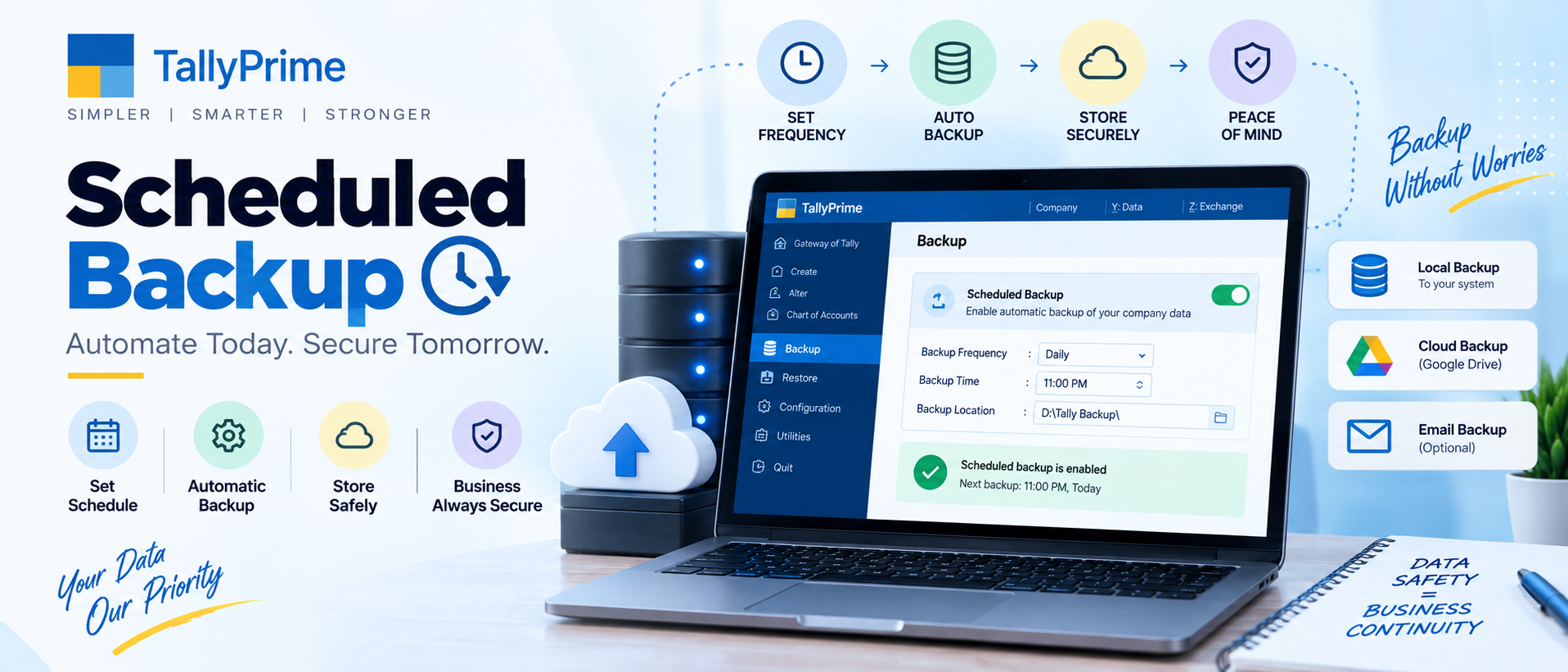
Tally Drive is Tally Solutions' official cloud storage and backup service bundled natively with every active Tally Software Services (TSS) subscription, designed specifically for Tally company data rather than generic files. Each licensed company gets 10GB of free dedicated cloud storage with military-grade AES-256 encryption at rest and in transit, hosted exclusively within Indian AWS ap-south-1 (Mumbai) data centres to ensure full compliance with Indian data residency and privacy regulations including DPDP Act 2023. Unlike consumer cloud storage services such as Google Drive, Dropbox or OneDrive where users typically drag-and-drop files manually, Tally Drive integrates at the kernel level with TallyPrime's company file locking mechanism — meaning it understands Tally's proprietary .900 data format, automatically flushes all pending write buffers before uploading, and guarantees snapshot-level consistency so you never end up with a half-written, corrupted or unusable backup that fails to restore after a ransomware attack or hard disk crash. The built-in auto backup scheduler runs silently in the background without interrupting voucher entry work, uploading only changed blocks after the first full seed backup, making incremental backups remarkably fast even on 50GB+ company files with 10+ years of historical data. For Chartered Accountants and SMEs managing multiple client companies, Tally Drive allows batch uploads from a single dashboard with per-company retention policies, detailed audit logs of every upload and restore operation, and optional email/SMS alerts whenever a backup job completes or fails.
Key Benefits
Ransomware Proof Backup
Immutable WORM (Write-Once-Read-Many) snapshots cannot be encrypted or deleted by ransomware. Point-in-time restore lets you roll back to any clean backup taken before the attack hit your local files.
Multi-Office Data Sync
HO uploads latest company file to Tally Drive; branch offices pull down the synced copy every morning. Everyone works on identical data without complex VPN or file server setups.
One-Click Restore
Browse a calendar of all historical snapshots taken on any date. Restore any company backup with a single click, optionally rename it, and open it immediately — no extracting ZIPs or manual file copying.
Access from Anywhere
Pair Tally Drive with Tally on Cloud subscription to open your company file from any laptop, desktop or thin client device with internet — no local Tally installation required.
Step-by-Step Guide
Login to Tally with Valid TSS ID (Ctrl+K)
Open TallyPrime and ensure you are signed in using the Tally Solutions account linked to your licensed TallyPrime copy with an active, non-expired Tally Software Services (TSS) subscription. Press Ctrl+K (Login) from the Gateway of Tally, enter your registered mobile number or email address, complete the OTP verification. After successful login, your TSS expiry date will display in green in the top-right user profile dropdown. If you see "TSS Expired" in red, contact Sanyam Consultants Hisar for instant renewal before proceeding with Tally Drive setup.
Navigate to Upload to Tally Drive

From the Gateway of Tally main screen, go to Company Info menu (typically accessed via Alt+F3 on older releases or directly visible on TallyPrime 3.0+ sidebar). Select the option labelled Upload to Tally Drive. Alternatively, press Alt+G (Go To) anywhere in TallyPrime and type "Upload to Tally Drive" — Tally will jump directly to the upload screen with a filtered list of all companies currently loaded or available in your selected data folder.
Select Companies & Perform First Full Upload
A multi-select checklist appears showing all Tally companies detected on your local hard disk. Tick the checkbox next to each company you wish to back up to Tally Drive (you can select multiple companies in one batch job). On the right-hand configuration pane, under Upload Mode, choose Full Upload for the first run — this seeds the complete base snapshot of all vouchers, masters and attachments on Tally Cloud. Depending on company file size and internet speed, the initial upload may take anywhere from 2 minutes to several hours. Do not close Tally or shut down the PC while the upload progress bar is running. You can continue voucher entry work in a second Tally instance on the same machine if needed since Tally Drive reads from a temporary snapshot rather than locking the live file.
Set Up Auto Backup to Tally Drive

Once the initial Full Upload shows a green "Completed" status with a timestamp in the upload history log, return to Company Info → Tally Drive submenu and click on the option Set Up Auto Backup to Tally Drive. This opens the scheduler configuration screen where you can define a recurring backup policy per company instead of remembering to upload manually. Auto backup runs silently as a Windows background task even if TallyPrime GUI window is closed (as long as the PC is powered on and connected to the internet at the scheduled time).
Schedule Frequency & Choose Backup Mode
Select the backup recurrence pattern: Daily is recommended for active transaction-heavy businesses; Weekly may suffice for consultants or businesses billing fewer than 5 invoices per week. Pick an off-peak time slot such as 9:00 PM or 2:00 AM when nobody is likely to be doing voucher entry and the office internet bandwidth is idle. Under Backup Mode select Incremental for fastest execution (uploads only new/changed blocks since last backup — typically under 60 seconds for daily changes). Incremental mode uses block-level deduplication and requires less than 5% of the bandwidth of a full re-upload. You can override to Full mode on specific dates if needed.
Test Restore from a Historical Snapshot
It is a critical best practice to verify your backups at least once a month — an untested backup is effectively no backup at all. Go to Company Info → Restore from Tally Drive. Tally Drive displays a calendar view with dots on dates where a successful backup snapshot was captured. Click any date (pick yesterday's snapshot for the freshest test) and a list of companies backed up on that date appears. Click the company name, then choose Restore with Different Name (critical! Do NOT overwrite your live working company during a test restore). Append "-TEST" or the restore date to the company name so you can distinguish it from the live file. Choose a local restore folder on a different drive than the original data path.
Verify Restored Company Opens & Data Matches
After restore completes successfully (green checkmark), go to Gateway of Tally → Select Company and open the newly restored TEST company from the list. Enter the same username/password you use on the live company. Once inside, navigate to Balance Sheet and Profit & Loss A/c reports and compare the closing balances, total debtors, total creditors, and stock summary totals against the live company using the same date period. Spot-check 2-3 recent vouchers to confirm voucher numbers, narration, and GST amounts match exactly. If all numbers tie, delete the test restore company from the local disk to avoid future confusion. Celebrate — your Tally Drive backup is now fully verified and production-ready.
Pro Tips
Pro Tips from Tally Backup Experts at Sanyam Consultants
- Hybrid Backup Schedule: Configure Tally Drive to run a Full backup every Sunday night and Incremental backups on all 6 weekday evenings. This gives you the best balance — incremental speed on weekdays for minimal bandwidth, while a weekly full backup rebuilds the complete snapshot chain cleanly and guards against any rare incremental chain corruption issues.
- Enable Email Notifications on Failure: Inside the Tally Drive auto-backup scheduler (F12: Configure), set "Email notification on backup failure" to Yes and enter your IT administrator's email address. If the backup cannot complete due to internet outage, Windows update reboot, or Tally service crash, you will get an instant alert email within 15 minutes listing the exact error code instead of discovering the gap 3 months later when you actually need the backup.
- Never Copy Files Manually from Tally Drive Folder: Do NOT use Windows File Explorer to browse, copy, paste, rename, or delete files inside the hidden Tally Drive cache folder on your C: or D: drive. Always use only TallyPrime's built-in Upload and Restore menu options. Tally Drive stores data in an opaque, de-duplicated block format with checksums — if you manually move files you will almost certainly corrupt the backup chain and lose the ability to restore historical snapshots.
- Tally Drive Storage is Separate from Local HDD: Remember that Tally Drive storage lives in AWS Mumbai data centres, not on your office computer. If your local hard disk dies, your laptop gets stolen, or ransomware encrypts every file on your PC — your Tally Drive backups remain completely untouched and safely recoverable on a brand-new PC. All you need to restore is your TSS login credentials and a fresh TallyPrime install on any machine.
Frequently Asked Questions
Absolutely. Tally Drive uses AES-256 military-grade encryption for all company data both in transit (TLS 1.3 encrypted channel) and at rest on cloud storage volumes. Tally Solutions infrastructure is ISO 27001:2022 certified for information security management, and all servers are hosted exclusively within the AWS ap-south-1 (Mumbai) region — ensuring data never leaves Indian territorial jurisdiction, fully satisfying DPDP Act, GST, and RBI data residency requirements. Only your Tally account holder (based on registered mobile OTP) can upload or restore backups — Tally employees cannot access or decrypt customer company files. Additionally, all ransomware-protected snapshots use object lock (WORM) technology preventing accidental or malicious deletion even if your local Tally login credentials were somehow compromised.
No, Tally Drive is a backup and synchronization service — not a multi-user concurrency or file-locking solution. If two users in different locations each download the company file from Tally Drive and both start making independent voucher entries, you will get two divergent versions of the data with no automatic merge, creating reconciliation headaches. For true simultaneous multi-user access where 2 to unlimited users work on the exact same live company file in real-time with proper row-level locking, you must deploy either Tally Server 9 (on-premises, typically for 5+ users in same LAN), or a Tally on Cloud subscription (hosted desktop-as-a-service, ideal for multi-location teams). Tally Drive pairs perfectly with Tally on Cloud — Drive provides the backup layer while Tally on Cloud provides concurrent multi-user access from any location.
Tally Solutions provides a generous 30-day grace period after your Tally Software Services (TSS) subscription expiry date. During these 30 days, all of your existing Tally Drive backup snapshots remain fully intact and accessible. You can still restore any company backup to a local machine without any restrictions — the only features disabled during grace period are new uploads and the auto-backup scheduler. After the 30-day grace window closes, Tally reserves the right to permanently delete your backup snapshots from cloud servers to reclaim storage space. To prevent any risk of data loss, always keep your TSS renewed continuously. If you see the orange "TSS Expiring Soon" reminder inside Tally, contact Sanyam Consultants Hisar for instant TSS renewal at competitive rates with same-day activation and no downtime.