Overview
TallyPrime Release 7.1 marks one of the most significant product updates from Tally Solutions in recent years, officially launched in early September 2026 with a focus on four core pillars: AI-powered decision making, seamless GST compliance through Bharat Connect integration, enterprise-grade data safety, and everyday productivity improvements. With over 100 incremental enhancements and several flagship features rolled out simultaneously, TallyPrime 7.1 bridges the gap between traditional desktop accounting and modern cloud-connected business intelligence that Indian SMEs have been demanding for years. Key highlights include the production-ready launch of TallyIRA AI assistant (with support for 11 Indian languages and predictive analytics), the native Bharat Connect platform for direct e-invoice, e-way bill and GST return filings without any third-party portals, intelligent GSTR 2A/2B reconciliation with auto-matching above 95% accuracy, scheduled automatic company backups with compression and cloud sync options, the new Save View feature for persisting personalised report configurations, and secure browser-based report access for viewing Tally reports from any device without installing TallyPrime on every machine. At Sanyam Consultants (Hisar, Haryana) — Tally Certified 3-Star Partner since 2004 — we have already deployed and upgraded TallyPrime 7.1 for more than 500 active clients across manufacturing, trading, retail, services and construction sectors in Hisar and surrounding districts like Rohtak, Bhiwani, Sirsa, Jind and Fatehabad. In this detailed overview we walk you through every major feature, its practical business impact, and a proven step-by-step upgrade procedure derived from our on-field deployment experience.
Key Benefits
AI-Powered Analytics via TallyIRA
Ask any business question in plain English, Hindi or 11 regional languages. Get instant reports, charts, payment predictions and stockout alerts without navigating menus or building custom MIS.
1-Click GST e-Invoicing via Bharat Connect
Generate IRN, e-way bill and file GSTR-1/3B directly from TallyPrime with zero manual portal visits. No more CSV uploads, OTP hassles or third-party API subscriptions.
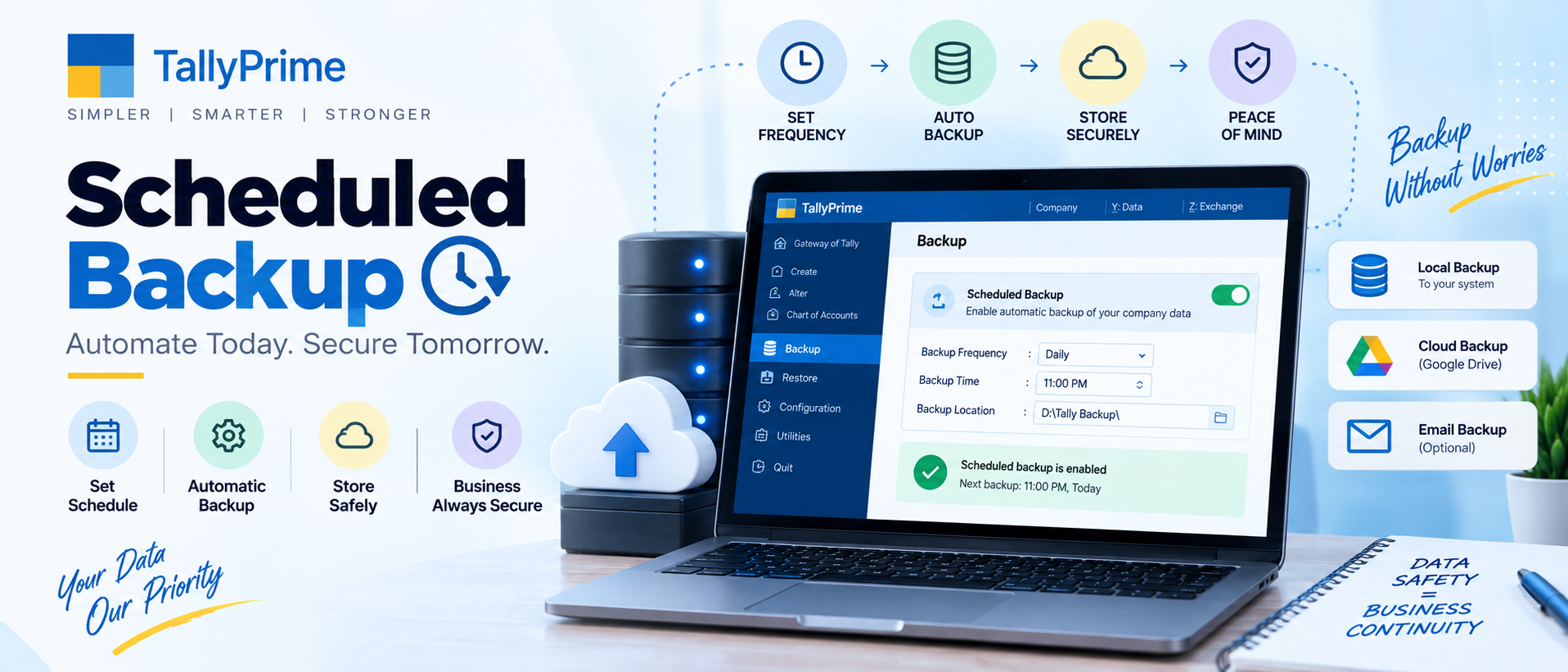
Auto Scheduled Backups for Data Safety
Never lose a day's work again. Configure hourly/daily/weekly backups with AES-256 encryption, auto compression, and cloud folder sync to Google Drive or OneDrive.
Browser-Based Report Access Anywhere
View Balance Sheet, P&L, Ledgers, Stock Summary and GST reports from any PC, tablet or mobile browser. Securely share read-only reports with CA or clients via URL.
Step-by-Step Guide
Check TSS Validity & Backup Company Data
Before initiating any upgrade, open your existing TallyPrime installation and press Ctrl+K (Login) to verify that your Tally Software Services (TSS) subscription is active and not expired. TallyPrime upgrades are only available to active TSS subscribers. Next, press Ctrl+Alt+B from Gateway of Tally or go to Company Info → Backup to take a full, verified backup of ALL your company data files (.900 extension) to a separate external drive or cloud folder. Do NOT skip this step — company data migrated to 7.1 cannot be opened in older releases.
Download TallyPrime 7.1 Installer or Use Auto-Update

You have two options to obtain the release. Option A (Recommended for single users): From any TallyPrime screen click Help → Check for Updates. TallyPrime will detect Release 7.1 as available and show an "Update Now" button. Option B (Recommended for bulk deployment or multi-user Gold edition): Visit tallysolutions.com/download in a browser, log in with your Tally account credentials, download the full TallyPrime 7.1 installer (setup.exe, approximately 150 MB), and copy it to a shared network location accessible by all client machines.
Run Installer and Choose Upgrade Path
Close all running instances of TallyPrime on all machines. Double-click the downloaded setup.exe (or click Update Now in auto-update flow). The TallyPrime InstallShield wizard opens. On the "Upgrade or New Installation" screen, select Upgrade Existing TallyPrime (do NOT choose New Installation unless you specifically want to keep both versions side-by-side). Accept the license agreement, confirm the installation folder (default: C:\Program Files\Tally\TallyPrime), and click Install. Wait 3–5 minutes for all binary files to be extracted and registered. For TallyPrime Gold (multi-user), run the upgrade first on the SERVER machine before upgrading client nodes.
Verify License Activation Post-Upgrade

After installation completes, launch TallyPrime 7.1 from the desktop shortcut or Start Menu. On first run you will be prompted to Reactivate Your License. Click the Reactivate button, enter your licensed Tally account email ID or mobile number when prompted, complete the OTP verification, and confirm that the "License Successfully Reactivated" confirmation message appears. Press F1 and confirm that the Product field shows "Release 7.1" and the Build number matches the official release. If license reactivation fails due to network issues, contact Sanyam Consultants for offline license file-based activation.
Open Company and Run Data Migration Tool
From Gateway of Tally 7.1 press Ctrl+O (Open Company) and select your existing company from the data folder. TallyPrime 7.1 will automatically detect that the company data is from an older release and display a "Company Data Migration Required" dialogue box. Click "Migrate Now". The migration tool runs a full structural validation, converts all voucher tables, masters and GST data to the new 7.1 schema, generates a pre-migration backup automatically, and shows a detailed migration log at completion. Typical migration time is 2–10 minutes depending on company size (number of vouchers and years of data).
Enable TallyIRA Login & Bharat Connect GSTN Registration
Once your company opens successfully in Release 7.1, press Ctrl+K to ensure you are fully logged in with your Tally account (required for all cloud-connected features). Click the TallyIRA icon on the right vertical toolbar and complete the one-time TallyIRA activation by accepting the terms. Next, go to Gateway of Tally → F11 Features → Statutory & Taxation, set "Enable Bharat Connect" to Yes, and click the "Register GSTIN" button. Log in with your GSTN portal credentials to authorise TallyPrime as your GST Suvidha Provider (GSP) for direct e-invoice, e-way bill and return filing without any third-party tools.
Validate Opening Balances & Run Test Invoices
Before processing live transactions, run three critical post-upgrade validations. First, print the Balance Sheet as on the last date of your closed financial year and compare totals line-by-line with the pre-upgrade printout (should match exactly). Second, open GSTR-1 report for the last filed month and confirm that totals in Table 3, 4 and 9 match your submitted GST returns. Third, create a test Sales Voucher (F8) with GST, save it, then press Ctrl+P → Configure and verify that both the dynamic UPI QR code and "Generate e-Invoice" options appear correctly. Post a test Receipt (F6) to confirm bank allocation works. Once all three checks pass, you are ready to go live on TallyPrime 7.1.
Pro Tips
Upgrade Pro Tips from Sanyam Consultants
- Always take company backup before upgrading: Even though TallyPrime 7.1 migration creates an auto backup, we strongly recommend taking a MANUAL backup to a physically separate device (external HDD or dedicated cloud folder) BEFORE running the installer. Store it for at least 30 days post-upgrade.
- Enable auto backups post-upgrade: Immediately after migration, go to Company Alter → F12 Configure and set "Enable Scheduled Auto Backup" to Yes. Configure daily backup at 7:00 PM with auto-deletion of backups older than 15 days to manage storage.
- Explore TallyIRA with sample queries first: Spend 15 minutes testing TallyIRA with safe, non-critical queries like "show monthly sales of last year" or "top 5 items by quantity". Build confidence before using it for quarter-end or year-end financial analysis.
- Register all GSTINs in Bharat Connect even if you have 1 user: If your business has multiple GSTINs (branches, warehouses, different states), register every single GSTIN under Bharat Connect in one go from the F11 screen. You can switch between GSTINs on the fly during voucher entry without re-authenticating each time.
Frequently Asked Questions
Yes — TallyPrime Release 7.1 is completely free of charge for all existing TallyPrime users who have an active, non-expired Tally Software Services (TSS) subscription. This applies to both TallyPrime Silver (single-user) and TallyPrime Gold (multi-user) licenses. If your TSS has lapsed, you will need to renew your TSS subscription first (typically at a nominal annual cost) before the 7.1 upgrade option becomes visible. Tally does not charge separate upgrade fees for major or minor releases — everything is bundled into the annual TSS subscription, which also includes product support, statutory updates, GST compliance changes, and access to all cloud features like TallyIRA, Bharat Connect and browser reports. If you need TSS renewal at the best available rates, contact Sanyam Consultants Hisar for instant activation.
Technically yes, you can uninstall TallyPrime 7.1 and reinstall the older release (e.g., TallyPrime 3.0 or 6.6), but there is one critical caveat: company data that has been migrated to the 7.1 schema cannot be opened in older TallyPrime releases. Tally's data migration is strictly one-way forward. This is exactly why we emphasise taking a verified backup BEFORE running migration. If you need to roll back, you would restore your pre-upgrade backup company files into the older TallyPrime version — which means any vouchers or transactions entered after the migration would need to be re-entered manually. For this reason we always recommend a parallel test upgrade on a copy of your real company data first, rather than upgrading your live data cold.
Tally Solutions' officially recommended and supported operating system for TallyPrime 7.1 is Windows 10 64-bit or higher (Windows 11 preferred) with at least 4 GB RAM, Intel i3 or equivalent processor, and 150 GB free hard disk space. That said, TallyPrime 7.1 will technically install and run on Windows 7 SP1 64-bit and Windows 8.1 64-bit, but you should expect limited support from Tally Solutions if you encounter OS-specific issues, and some advanced features (particularly the browser report access using the embedded Chromium engine and certain Bharat Connect TLS 1.3 security protocols) may not function correctly or at all on older Windows versions. Windows 7 and 8.1 have already reached end-of-life from Microsoft, so we strongly recommend planning an OS upgrade to Windows 10 or 11 alongside your TallyPrime 7.1 migration for long-term stability and security.